
Selecting and copying
Select
Section titled “Select”- A cell: tap it.
- A row: tap its number on the left.
- A column: tap its name.
- A range: select a cell, then drag the round handle at its corner.
- Everything: tap the corner square at the top left of the table.
- Exact rows: ⋯ → Select range, then type From and To.
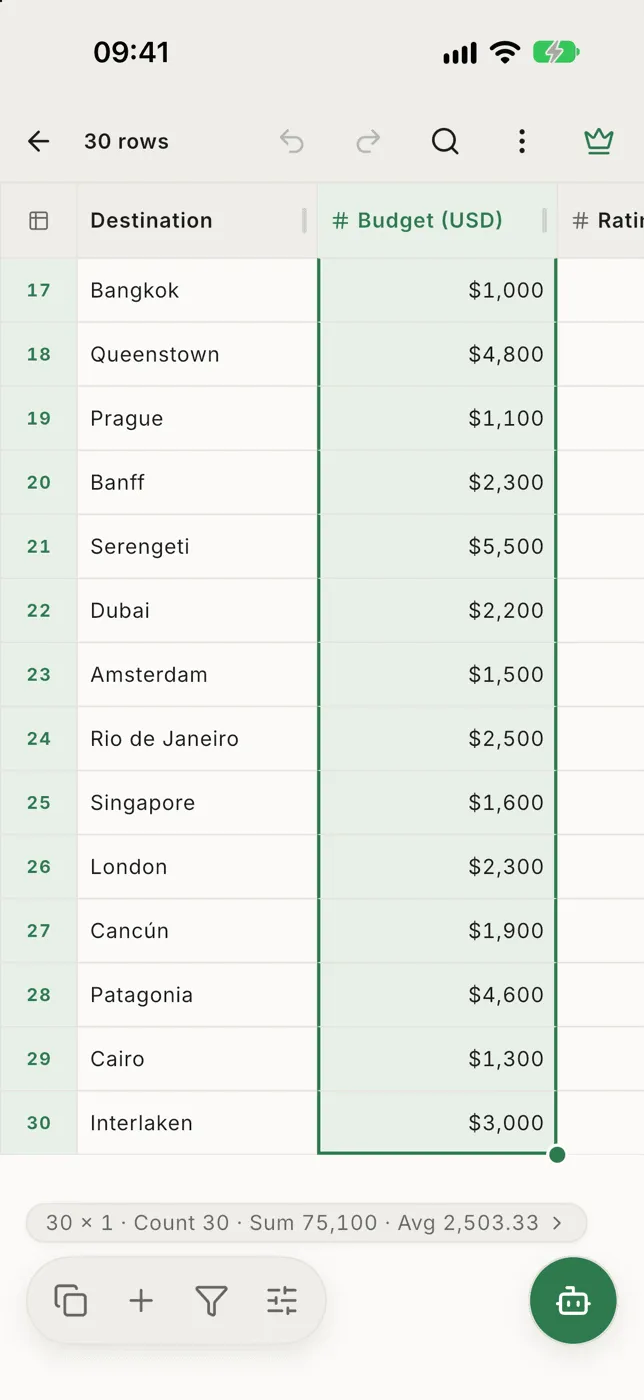
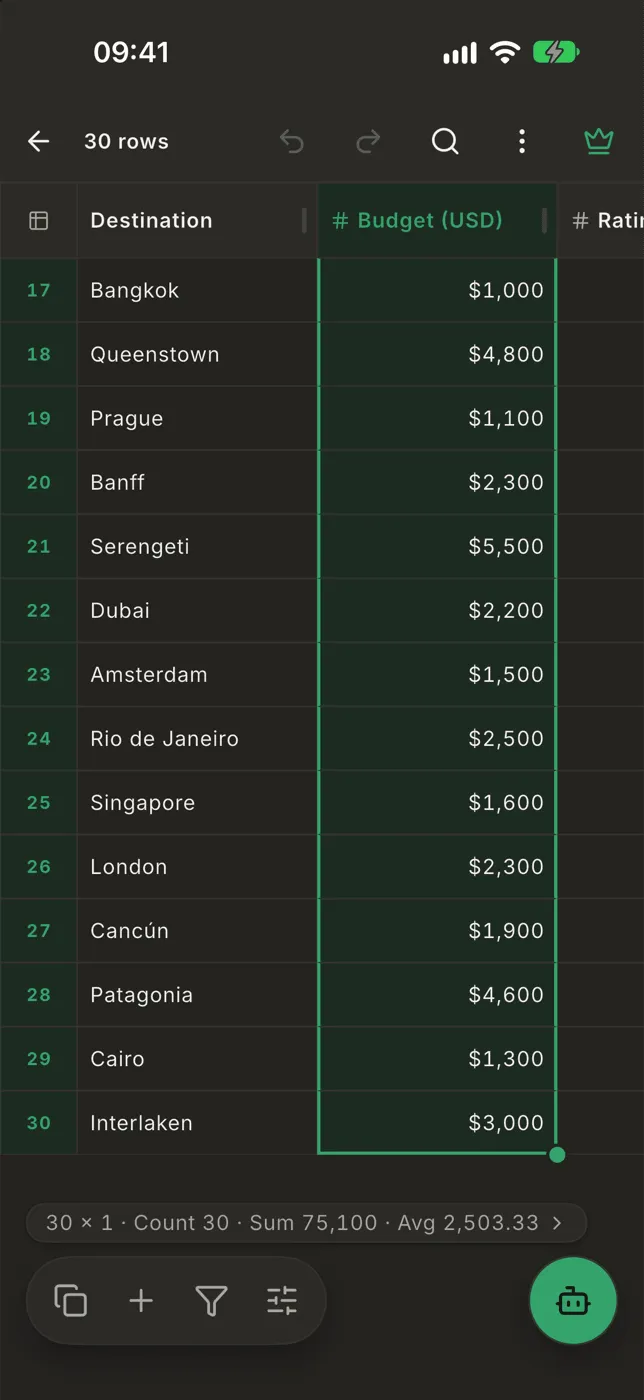
Tap Copy in the small bar that appears above a selection of two or more cells, or hold a cell and tap Copy in the Edit menu.
- One cell copies just its text.
- Anything larger copies as a table (tab-separated), so it pastes into Excel, Google Sheets or Numbers as real cells.
- The row numbers are never copied.
- A selection copies its rows across the whole file, not just the ones on screen, following your filter and sort.
Make a new file from a selection
Section titled “Make a new file from a selection”Select more than one cell, then ⋯ → New file from selection.
- The new file holds just the selected cells, with their column names as the header row.
- Like Copy, it takes the selected rows across the whole file, follows your filter and sort, and leaves out hidden columns and row numbers.
- It is saved next to your other files as name (selection).csv. Tap Open on the message to switch to it, or find it later on the home list.
- There is no size limit. A big selection shows its progress and can be cancelled.
Sum, average and more
Section titled “Sum, average and more”When more than one cell is selected, a line above the bottom bar sums it up:
30 × 1 · Count 30 · Sum 75,100 · Avg 2,503.33Tap the line (or hold a cell and choose Selection stats) for the full list: size, filled and empty cells, and for numbers the count, sum, average, minimum and maximum. Tap any value to copy it, or Copy all to copy the whole list for a spreadsheet.
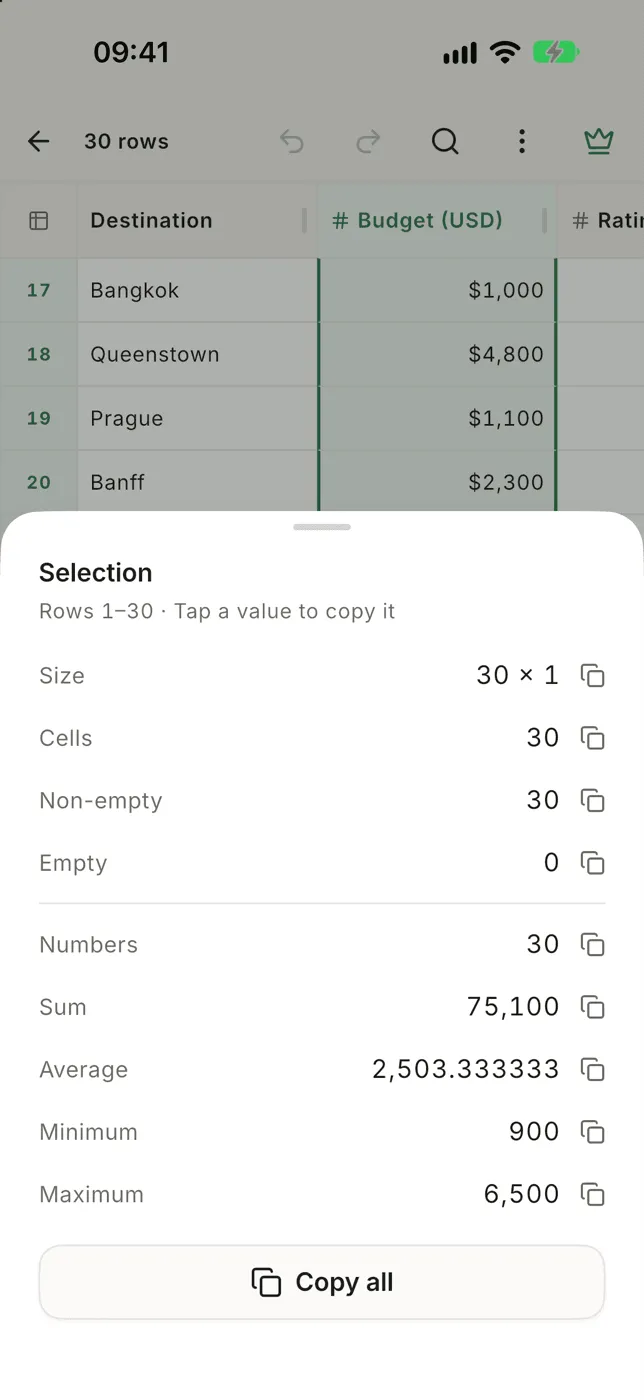
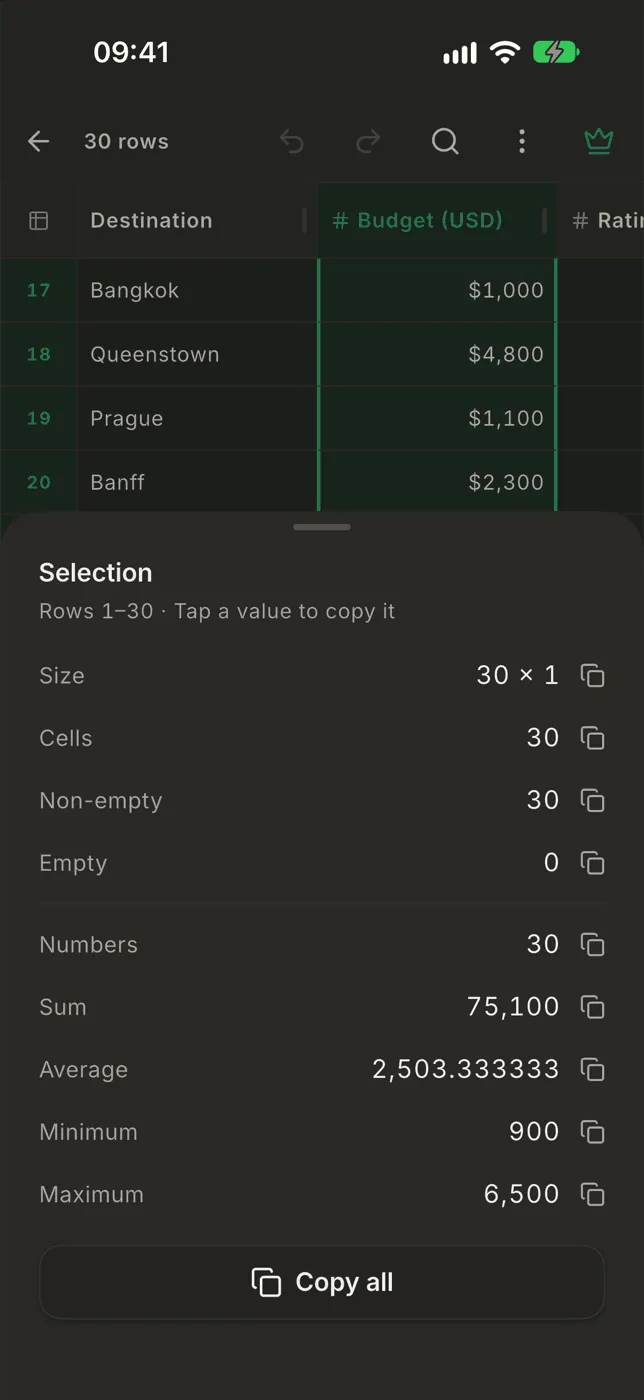
Numbers written as 1,234.50, $5 or 1.234,50 all count.