
Editing cells
Edit a cell
Section titled “Edit a cell”- Tap a cell to select it.
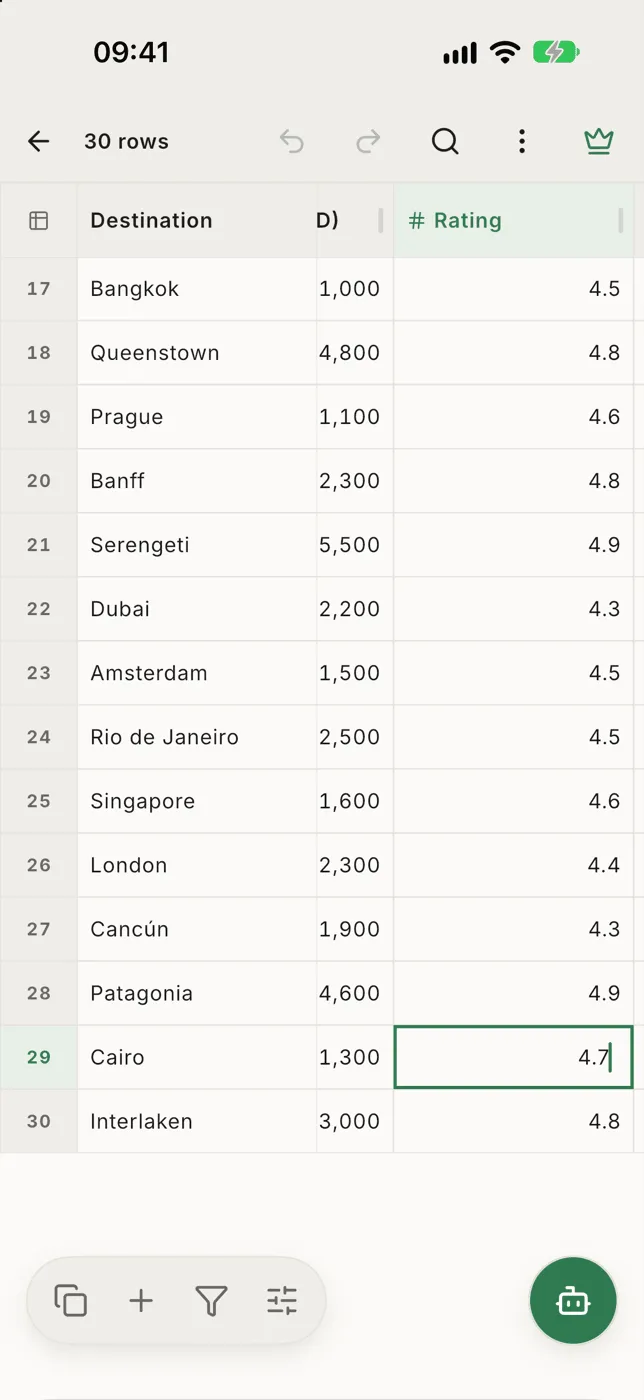
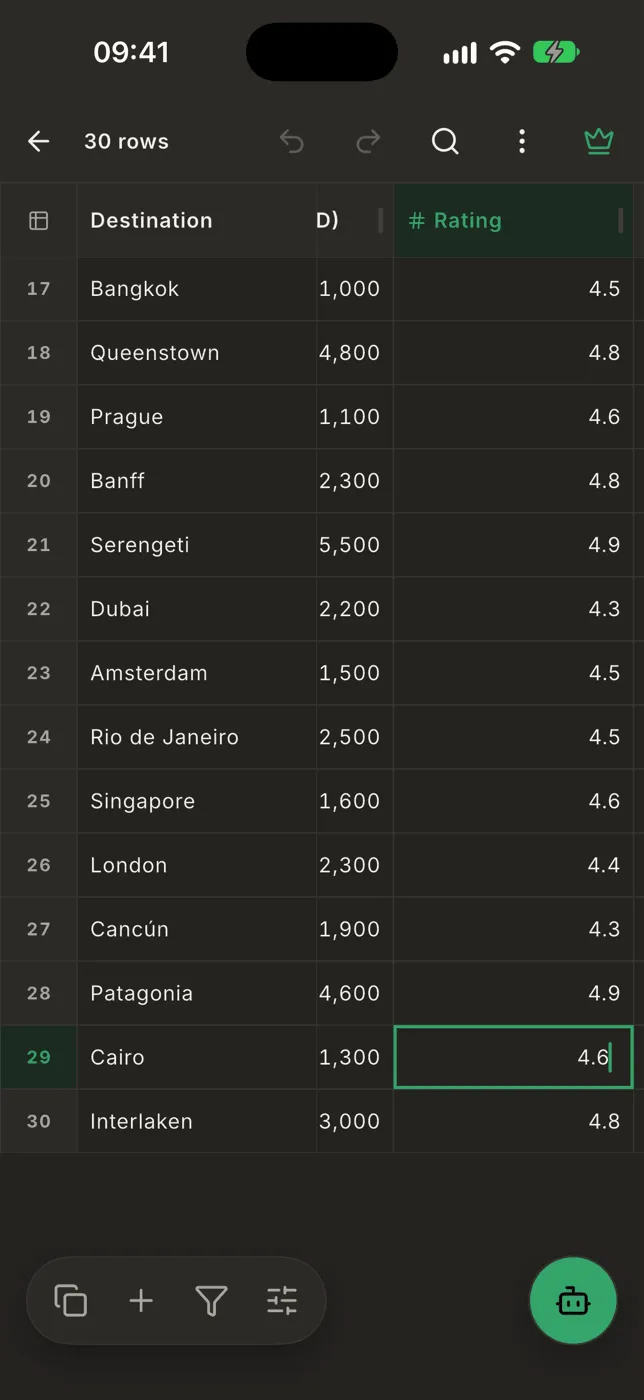
- Tap it again. A text field opens over the cell and the keyboard comes up.
- Type. A bar on top of the keyboard shows which column and row you’re in:
- ✓ saves the cell and puts the keyboard away.
- ✕ puts the cell back the way it was.
- Return saves and moves down one row.
After Return the keyboard stays up and the cell below is selected, without a cursor. Start typing and what you type replaces that cell’s value, so you can fill in a column one cell after another. To change the value instead of replacing it, tap the cell: the cursor goes to the end of what’s there. You can also tap any other cell and type into it straight away.
On the last row, Return saves, adds a new row below and moves to it, so you can keep typing data in without touching the menus.
The field stays open while you scroll to look at other rows. Typing, or tapping the column and row in the bar, brings you back to the cell.
With a hardware keyboard you can also just start typing on a selected cell, move with the arrow keys and cancel with Esc: see Keyboard shortcuts.
Cells with a type edit their own way: a checkbox ticks with one tap, a select or date column opens its picker when you tap the cell twice. On a number column the keyboard shows numbers.
For long values, tap the expand button in the bar over the keyboard. What you typed is saved, and the row form opens on that field with the keyboard up, so you can keep typing with more room.
Cut, clear and paste
Section titled “Cut, clear and paste”Select two or more cells, or a row, and a small bar appears above them with Cut, Copy, Paste, Clear content and ⋯ for the rest of the Edit menu. It steps aside while you drag a handle and comes back when you let go. Scrolling puts it away, as using it does: tap inside the selection to bring it back.
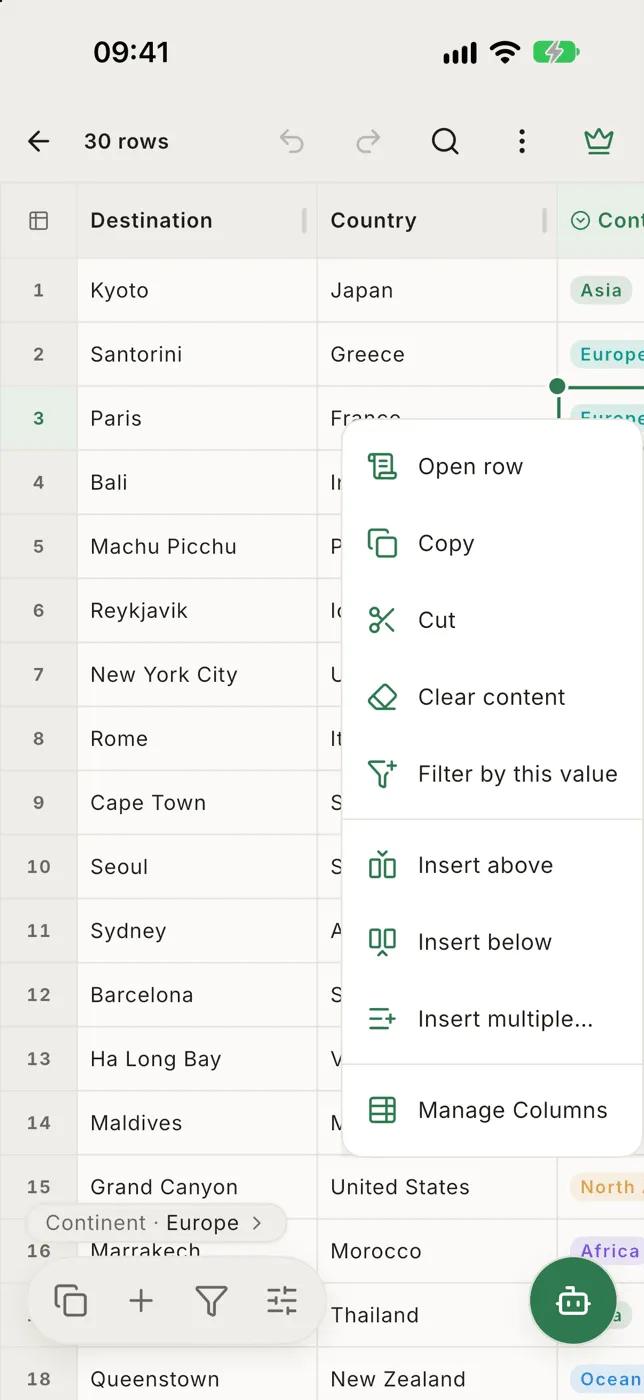
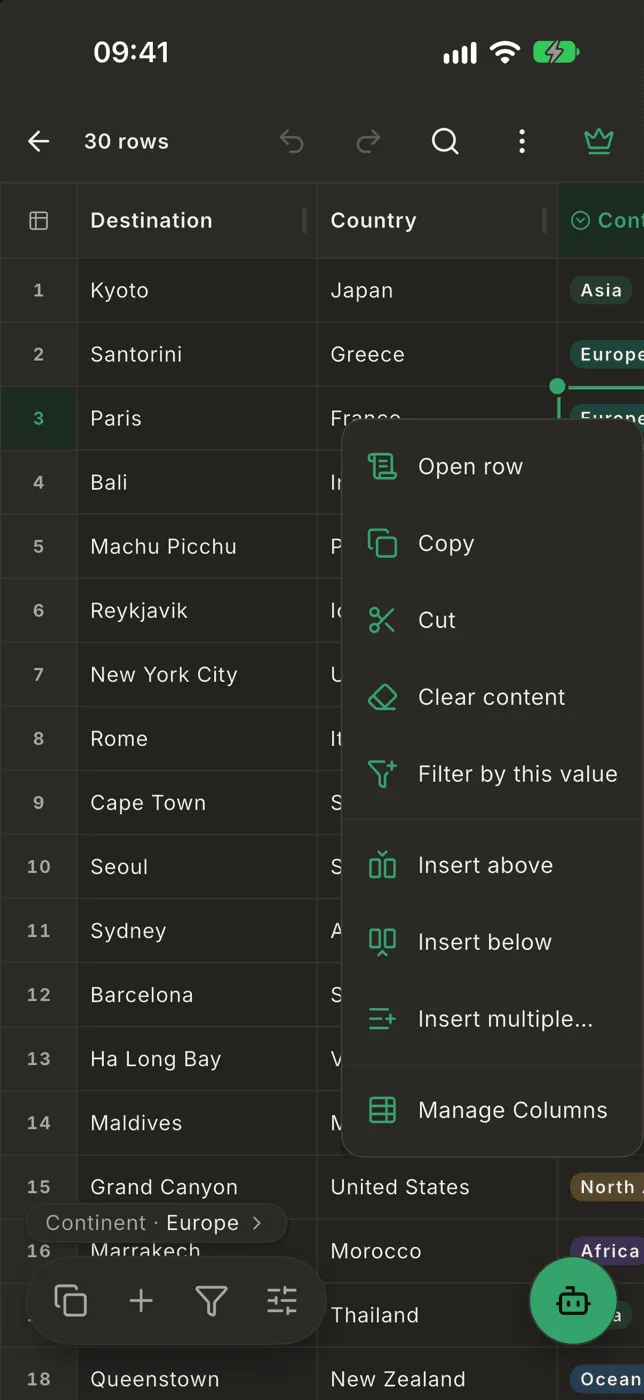
You can also hold a cell, or a range of cells, to open the Edit menu:
- Copy: copies the cell, or the selected cells, as described in Selecting and copying.
- Cut: copies, then empties the cells. A cut too big for the clipboard (more than 100,000 characters, such as a whole large table) is refused and nothing changes; share the file instead.
- Paste: puts what you copied, here or in Excel, Google Sheets or Numbers, into the table from the top-left selected cell. One copied value fills every selected cell.
- Clear content: empties the cells. On whole rows, only the columns you can see are cleared; hidden columns keep their values.
- Filter by this value (one cell): shows only the rows with exactly the same value in this column.
After Clear content on two or more cells, a message offers Undo. Cut and paste show no message: the cells change in front of you, and Undo in the top bar takes them back.
- Smart CSV asks first when a paste would replace two or more cells that already hold something, or when it doesn’t fit: it can add the rows and columns it needs, or paste only what fits. A preview shows what’s on the clipboard.
- If the first copied row is the table’s own column names, you can skip it.
- With a filter on, a paste goes into the rows you see, in the order you see them. Hidden rows and hidden columns are left alone. Rows can’t be added while a filter or sort is on.
- To fill a whole column with one value, tap its header, open + and tap Paste.
- One Undo takes the whole paste back, added rows and columns included.
Edits are saved as you go
Section titled “Edits are saved as you go”Every edit is saved in Smart CSV straight away; there is no save button. When you share the file, your edits go with it. See Undo & saving.