Export PDF
Export
Section titled “Export”- Optionally select the rows to export. With nothing selected, or just one cell, all rows are exported. With two or more rows selected, you’re asked whether to export Only selected or All.
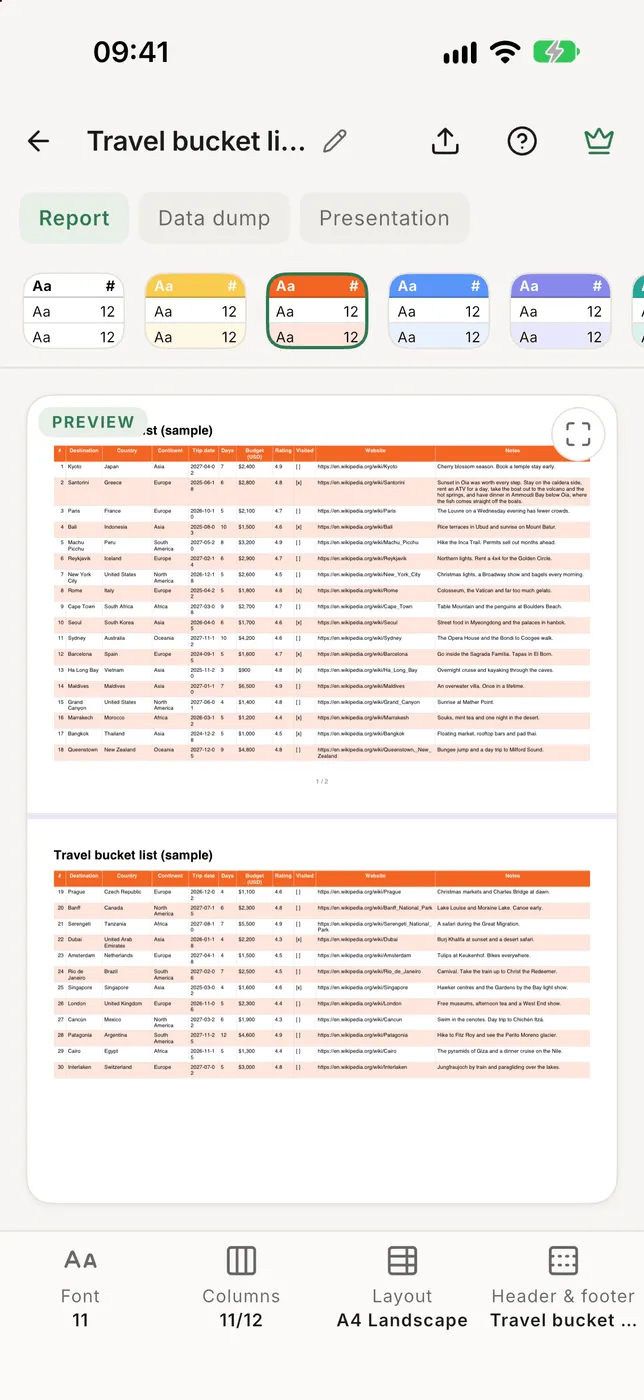
- Tap ⋯ → PDF. A live preview of the first two pages shows what you’ll get.
- Adjust it (below).
- Tap export (top right). The finished PDF opens for a last look, with Share to send or save it.
Exported PDFs are also listed under Exported files on the home screen. To make PDFs of many files at once, see Batch PDF.
Presets and styles
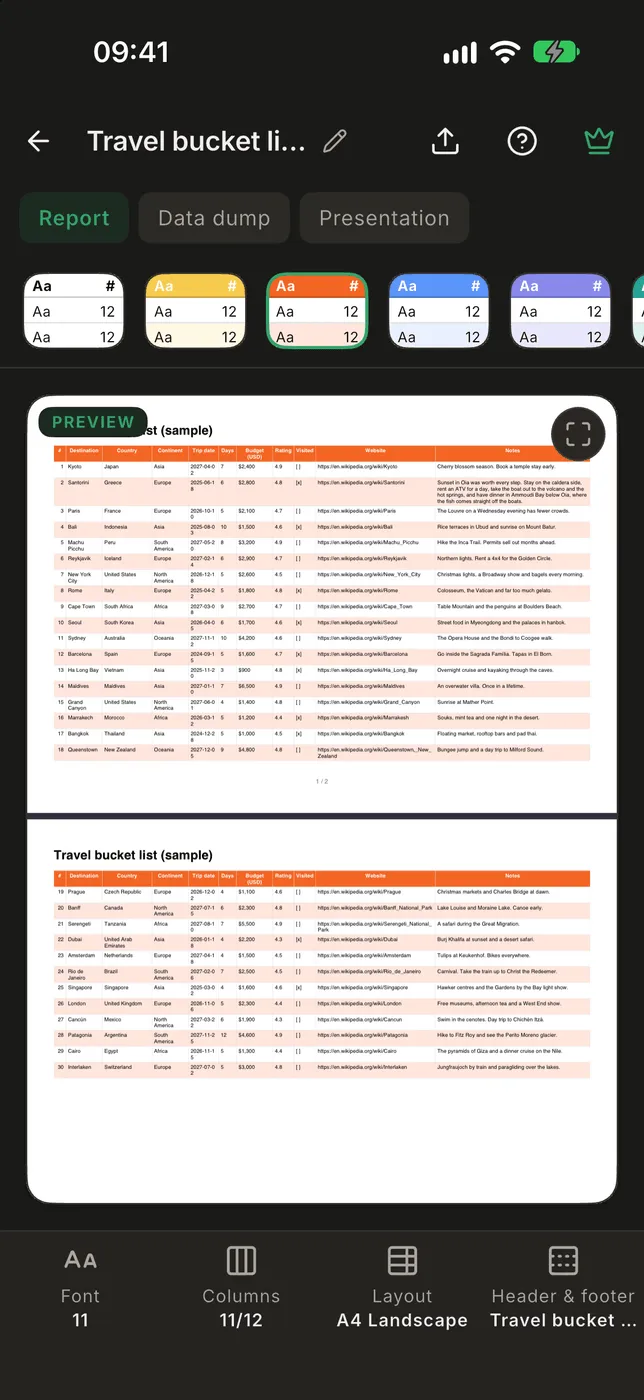
Section titled “Presets and styles”- Report, Data dump and Presentation set everything at once. Change anything afterwards and the preset shows · edited.
- The row of styles under them sets the colours of the header and rows. Three of them are your own: tap the pen on one to pick its colours.
The file name
Section titled “The file name”The name at the top is the file the PDF is saved as, for example
sales.pdf. It starts as the name of your CSV. Tap it to rename the PDF.
The name is used for this export only; the next one starts from the CSV’s
name again. If a PDF with that name already exists, a number is added.
The bar at the bottom
Section titled “The bar at the bottom”Each item opens a sheet, and the preview stays visible above it. Drag the sheet up to see everything at once; drag it down or tap the preview to close it.
- Font: size and bold, italic or underline of the table.
- Columns: the columns that print, in the order they print, and under
them the ones that don’t.
- Group rows by (at the top): pick a column, and a heavier line is drawn wherever its value changes. The line follows the rows as they are, so sort by that column first; the sheet tells you when the groups are split.
- Row numbers: turn the
#column on or off. It always prints first. When it prints with a header row, type what its header cell says, such as No. or Row, in the box beside it. Leave it empty to print#. - In the PDF: drag a column by its handle (or press and hold it) to change the order. Tap ⊖ to take a column out of the PDF; the last one can’t be removed.
- Not in the PDF: tap a column to add it. It goes to the end of the list.
- The small button on each row shows the column’s style and opens it: B, I and U make its cells bold, italic or underlined, and the three alignment buttons align it left, centre or right with one tap. A column starts with the Font settings and the alignment it has in the viewer. The column’s name shows its bold, italic and underline. Tap anywhere else to close the style buttons.
- With Fit text, a pin marks the columns repeated on every continuation page: the first Repeated columns in this order.
- ⋯ next to the sheet’s title: Select all, Restore file order, and Reset column styles (back to the Font settings and the viewer’s alignment).
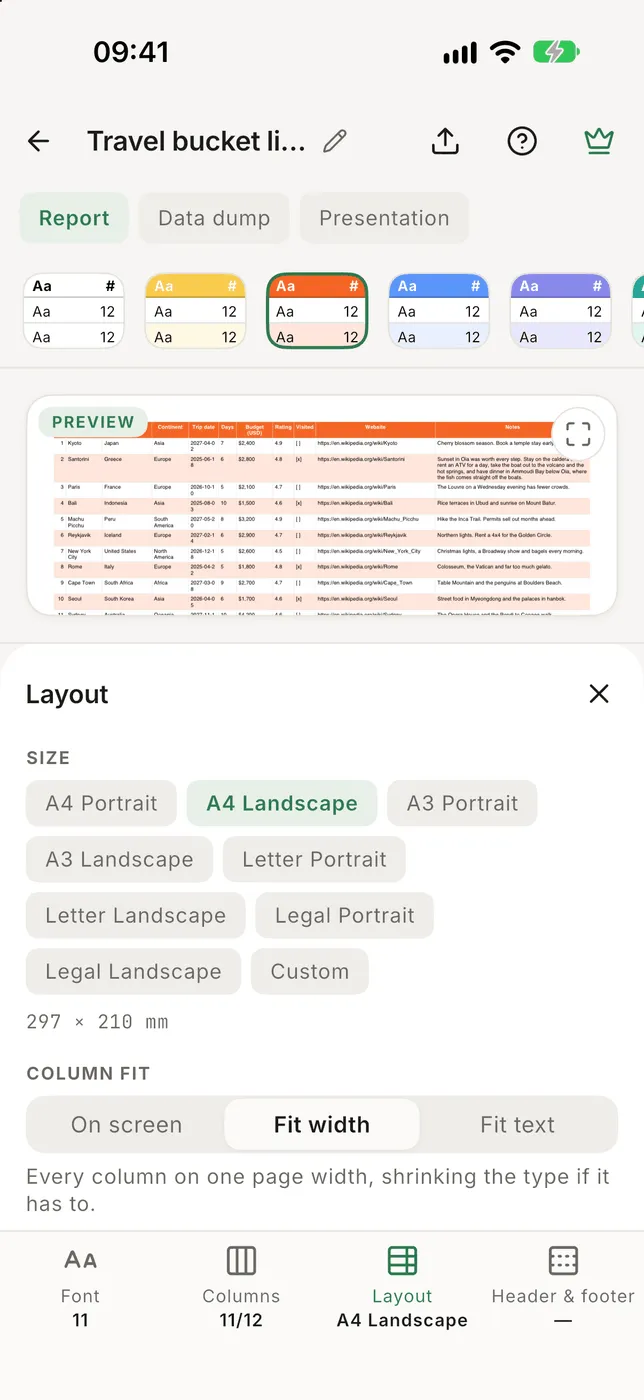
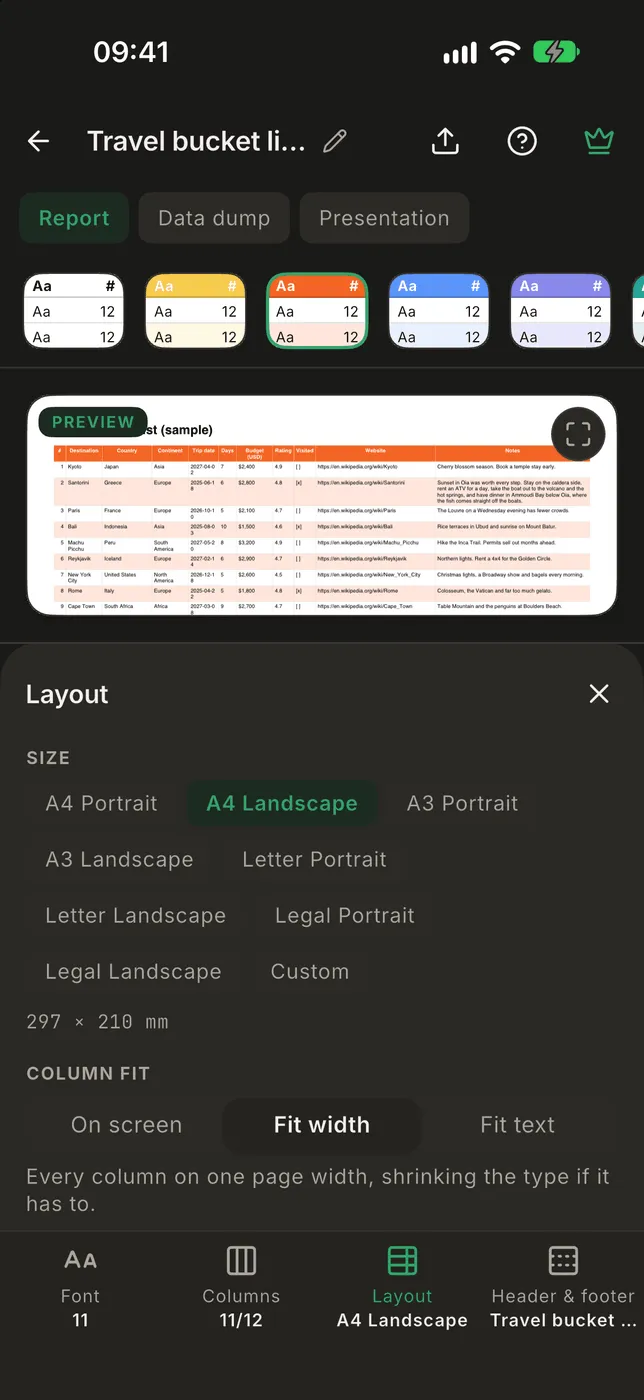
- Layout:
- Size: paper size and portrait or landscape.
- Column fit: On screen keeps the widths you see in the app, Fit width shrinks everything onto the page width, Fit text sizes columns to their text and continues a wide table on the next page.
- Long text: wrap or truncate.
- Margins: narrow, normal or wide.
- Header row, Repeat header row on every page, and Repeated columns (kept on every continuation page so each row can still be identified).
- Header & footer: the text printed above and below the table.
Header and footer
Section titled “Header and footer”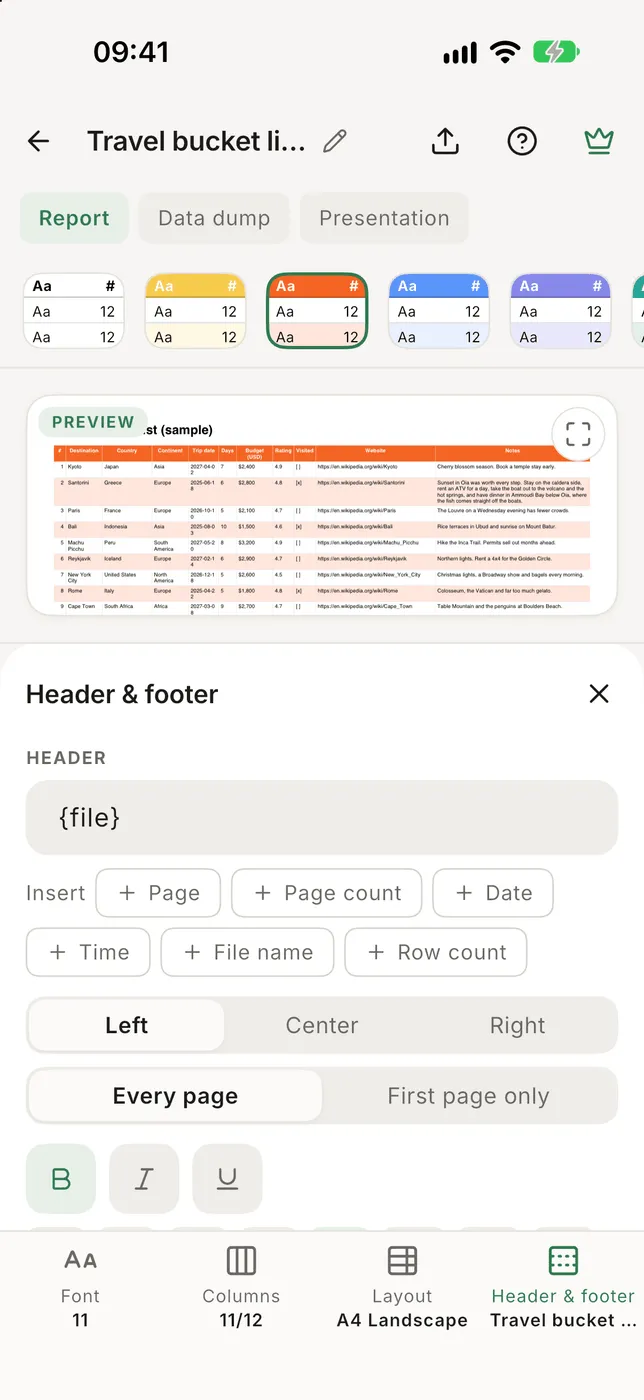
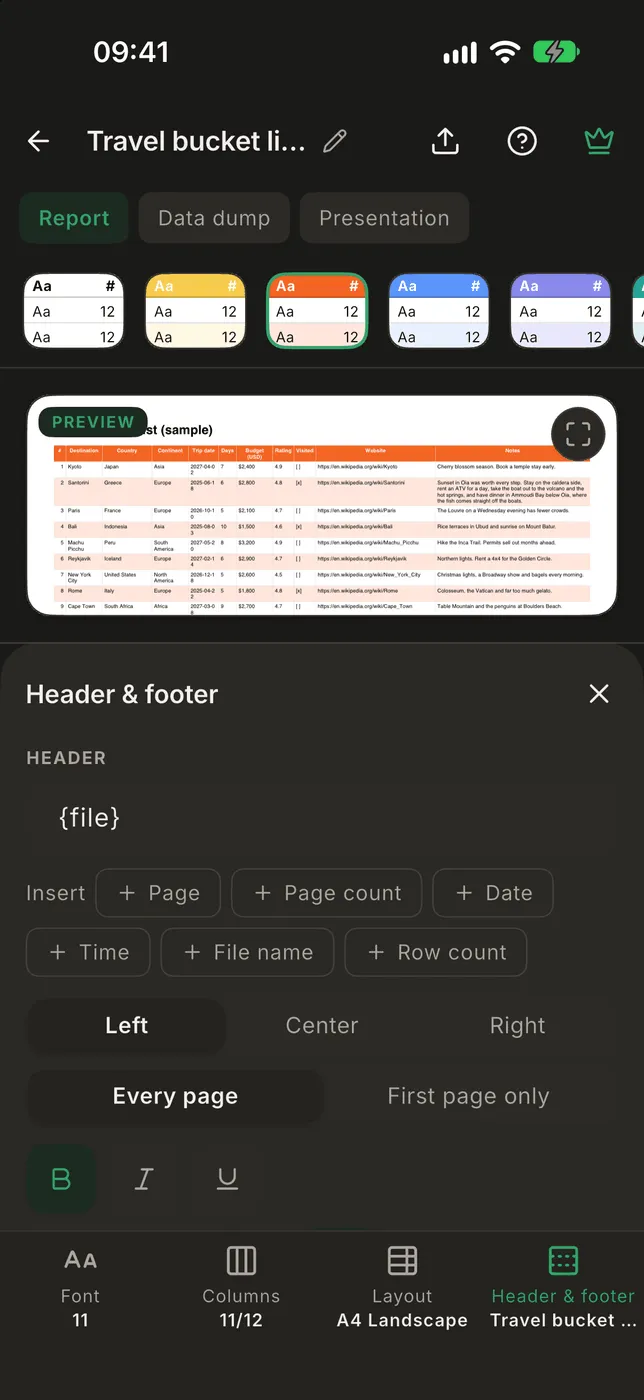
The sheet has two sides; switch between them with Header and Footer at its top. While the sheet is open, the preview zooms in on the side you are editing, so you can read what you type as you type it. Move the page yourself and it stays where you put it; closing the sheet puts the preview back where it was.
- Header: a line of text at the top of the page. Choose Left, Center or Right, Every page or First page only, and its size and bold, italic or underline. The header has at most two lines: press Return once to start the second one yourself, or let a long line wrap. Anything past two lines is cut short. When the file has a title line above its header, that is the header to begin with.
- Footer: your own text on the left, Page numbers in the middle and the Export date on the right. The footer text is remembered for your next exports; the header is not.
- Notes: a legend or remarks about the data, up to 10 lines, printed once under the last row of the table (it continues on a new page if it has to). For example Legend: composition refers to completely dry wood. When the table runs past the two preview pages, the preview shows the notes at the foot of its second page so you can still check them.
All three texts can hold tokens, which are replaced when the PDF is made. Tap a chip under the field to insert one where the cursor is:
| Token | Becomes |
|---|---|
{page} |
the page number |
{pages} |
the number of pages |
{date} |
the export date, in your language’s format |
{time} |
the export time |
{file} |
the CSV’s name, without .csv |
{rows} |
the number of rows exported |
For example {file} · {date} prints sales · 26/10/2026. Anything else in
braces is printed as you typed it.
Big tables
Section titled “Big tables”However many rows you export, you get one PDF. Pages are written to the file one at a time, so a 100,000-row table exports without running out of memory. Very wide tables take a little longer: under Fit to text the rows are read once for each page width.
A PDF holds at most 10,000 pages. A table that would need more is split into
equal parts, named sales (1 of 3).pdf, sales (2 of 3).pdf and so on.
Each part’s footer says which part it is and which rows it holds, and each
counts its own pages. The parts open together: the arrows at the top move
between them, and Share sends this part or all of them.
Column types carry over: numbers print in their display
format, dates with their day of the week when the column shows it, and
checkboxes print as [x] and [ ].
Languages
Section titled “Languages”Text in any language prints as written, in every place it appears: cells, column names, the header, the footer and the notes. Bold, italic and underline work too.
- Arabic, Persian and Urdu letters are joined, and Hebrew and Arabic read right to left. A cell’s text keeps the alignment you chose for its column.
- Hindi, Gujarati and Tamil letters combine as they should, and Thai marks sit in their place.
- Chinese, Japanese and Korean need a font that is too big to come with the app. The first time a PDF has such text, the font downloads while you look at the preview (between 10 and 21 MB), and every later export works offline. If you tap export before it has finished, a dialog waits for it. Without a connection you can still Export anyway, but that text prints as boxes.
- Scripts without an italic style, such as Arabic, Chinese or Thai, print upright when italic is on.
- Emoji don’t print. When some cells hold characters the PDF can’t print, the preview says how many.
- Shaped text copies out of the finished PDF as the words it is.
The column order, column styles, the group column and the notes are kept for this file only. The other settings carry over to your next export of any file.
Free and Pro
Section titled “Free and Pro”Free exports stop at 1,000 rows and say so in the footer. Pro has no row limit.